How to Resolve Location Verification Failures in E-Shikshakosh
How to Resolve Location Verification Failures in E-Shikshakosh
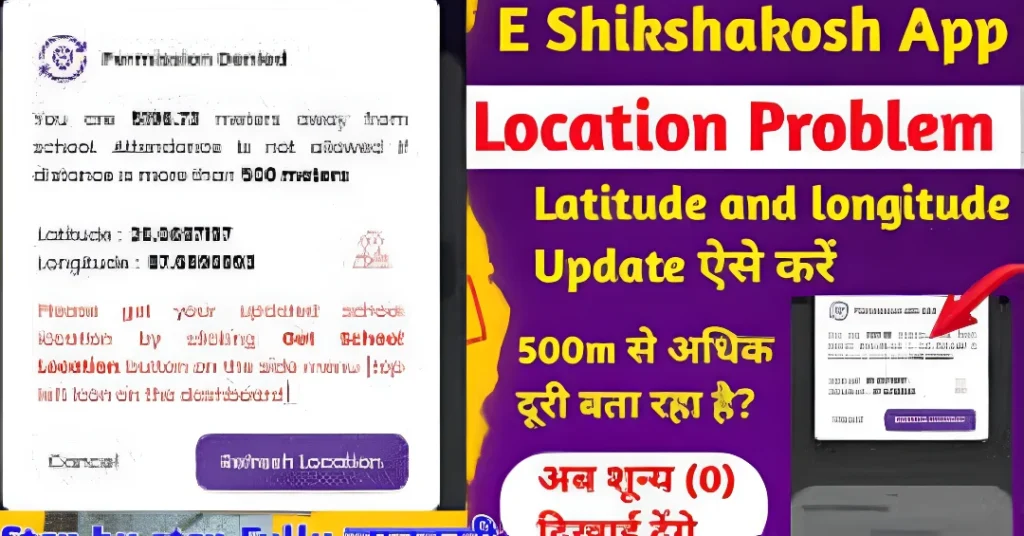
Experiencing location verification issues on the E-Shikshakosh app? You’re not alone. Many teachers in Bihar face challenges with the app’s GPS-based attendance system, especially when the app fails to detect their presence within the required 500-meter radius of the school. This can lead to attendance errors and unnecessary stress. But don’t worry—here’s a step-by-step guide to help you troubleshoot and resolve these issues.
Step 1: Ensure Accurate GPS Settings
The E-Shikshakosh app relies on your device’s GPS to verify your location. If the GPS is disabled or not functioning properly, the app may not detect your presence accurately.
To enable and configure GPS:
Open your device’s Settings.
Navigate to ‘Location’ or ‘Location Services’.
Ensure that ‘Use location’ is turned on.
Set the mode to ‘High accuracy’ to improve location detection.
This setting allows the app to use GPS, Wi-Fi, and mobile networks to determine your location more accurately.
You can also read:Troubleshooting Document Upload Problems on E-Shikshakosh
Step 2: Update the E-Shikshakosh App
An outdated app version may have bugs or compatibility issues that can affect location verification.
To update the app:
Regular updates ensure that you have the latest features and bug fixes.
Step 3: Clear App Cache and Data
Accumulated cache and data can cause the app to malfunction, including issues with location services.
To clear cache and data:
Note: Clearing data will log you out of the app, so ensure you have your login credentials handy.
Step 4: Verify School Location on Google Maps
If the app consistently shows that you’re outside the 500-meter radius, the school’s location on Google Maps might be incorrect.
To check and update the school’s location:
Updating the school’s location can help the app accurately detect your presence.
Step 5: Contact Support
If you’ve tried all the above steps and still face issues, it’s time to reach out for assistance.
Contact the E-Shikshakosh helpdesk:
- Phone: +91-9523300520 or +91-9430820499
- Email: helpdesk.esks@gmail.com
Provide them with details about your issue, including your device model, app version, and any error messages you’ve encountered.
Step 6: Reinstall the App
Sometimes, the best solution is a fresh install. If the app continues to malfunction, uninstalling and reinstalling it may fix location-related errors.
To reinstall the app:
This can help fix any corrupted files or settings within the app.
Step 7: Check Network and Signal Strength
Sometimes, a weak internet connection or poor GPS signal can affect location verification. Ensure you have a stable internet connection, preferably Wi-Fi or strong mobile data, and that your GPS signal is stable.
Pro Tips to Prevent Future Location Issues
VPNs can mask your location, causing the app to detect an incorrect position.
A weak or intermittent connection can affect GPS accuracy.
Sometimes, a simple restart can resolve underlying issues.
FAQs
Final Words
Location verification issues in E-Shikshakosh can be frustrating, but with the right steps, they can be resolved. By ensuring accurate GPS settings, updating the app, clearing cache, verifying school location, reinstalling the app, and contacting support when needed, you can ensure smooth attendance marking.