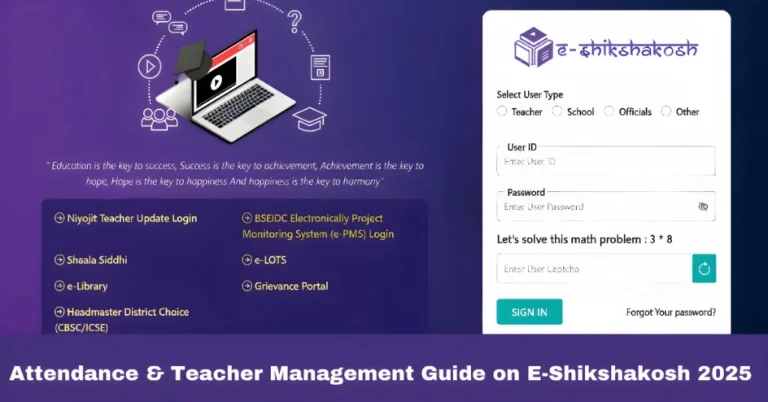
Attendance Not Marking on E‑Shikshakosh App Update 2025
Attendance Not Marking on E‑Shikshakosh App Update 2025
If you’re a teacher in Bihar trying to mark your attendance via the E‑Shikshakosh app and it’s not working — you’re not alone. Many teachers have reported that the app refuses to accept “In” time or shows errors such as being out of range, even though you’re in the school. In this article, we’ll walk through why this happens, what you can check right away, and how to get back on track smoothly.
Why Your Attendance May Not Be Marking
Here are some common causes for attendance failures on the E‑Shikshakosh app:
The app checks if you are within a certain radius (about 500 m) of the school campus before allowing you to mark attendance. If the GPS is off or your mobile can’t get location, it won’t mark. Scroll.in+1
If the app can’t communicate with the server, the attendance “In” or “Out” button may not process properly. Careers360
Many teachers report slow loading, hanging screens, or server time‑outs especially during peak hours (morning). Scroll.in+1
If your school’s location or your posting isn’t updated correctly in the system, the app may treat you as “outside” and prevent attendance.
The app might need permission to access your location, camera (for selfie), and maybe storage. Without these, it may fail.
The app may allow attendance only during specific hours (e.g., 8:30‑9:00 AM). If you try beyond window, your mark may be rejected. Scroll.in
You can also read:Forgot Password or Wrong Mobile on E‑Shikshakosh 2025?
Step‑by‑Step: What You Should Do Immediately
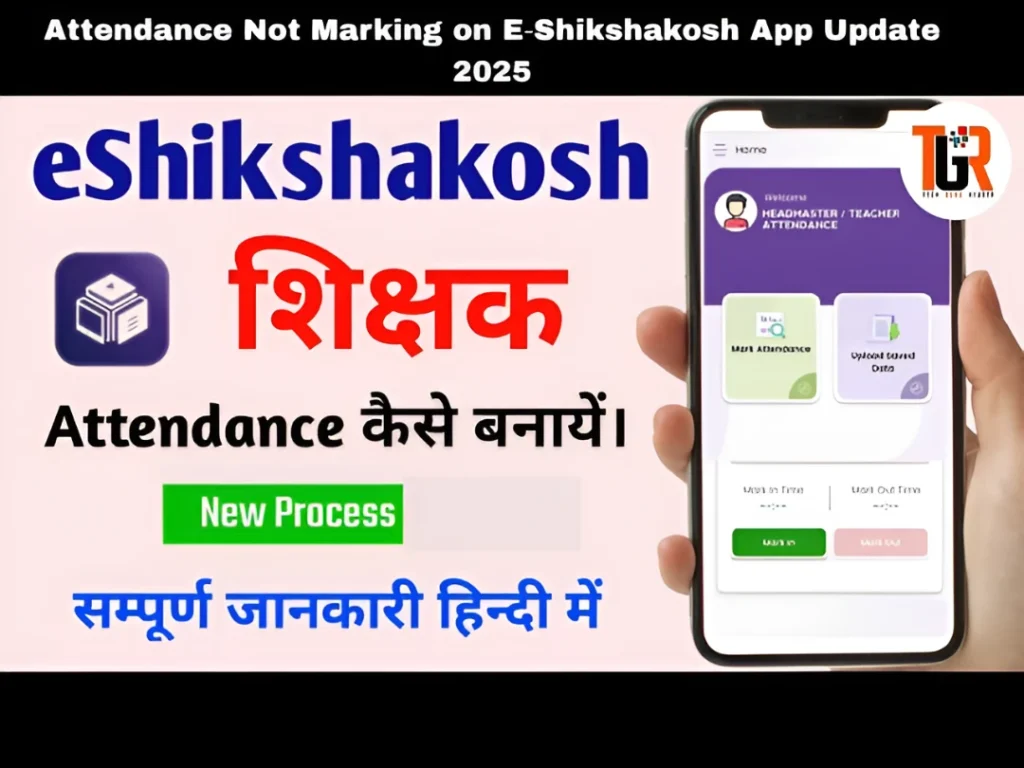
Here’s a friendly checklist to follow when your attendance won’t mark:
Make sure your mobile has internet (mobile data or WiFi) and your GPS/location is turned ON. You can open Google Maps quickly to check if your location is accurate.
Open the app near your school building. If the app still shows “Outside school” or “Out of range”, there might be a GPS‑or‑record mismatch.
• Try moving a few meters north/south or outside the building entrance if signal is weak.
• Ask your headmaster or admin if the school’s location data in E‑Shikshakosh is correct.
Sometimes closing the app completely and re‑starting it helps. If possible, reboot your phone and try again.
Go to your phone’s Settings → Apps → E‑Shikshakosh → Permissions. Make sure Location, Camera, Storage permissions are all allowed.
The app may require you to take a selfie or photo at the time of marking attendance. Ensure camera works and takes a clear photo.
Try marking attendance as early as possible (when you arrive). The system may slow down if many teachers try it at once.
If you still can’t mark attendance:
Inform your headmaster and ask them to submit a ticket or grievance through the app/portal.
Keeping proof prevents salary or leave deductions later.
Take a screenshot of the error message.
Note the time of your attempt.
Tips to Avoid Future Attendance Issues
FAQs
Final Words
Having your attendance refused by the E‑Shikshakosh app can be frustrating, but don’t worry — many of these hurdles are fixable. By ensuring your phone settings are correct, you’re within range, and reporting problems with proof, you’ll protect yourself from any unfair penalties. Bring it up with your headmaster early, submit proof, and get it resolved. You deserve a smooth start to your day without tech trouble.