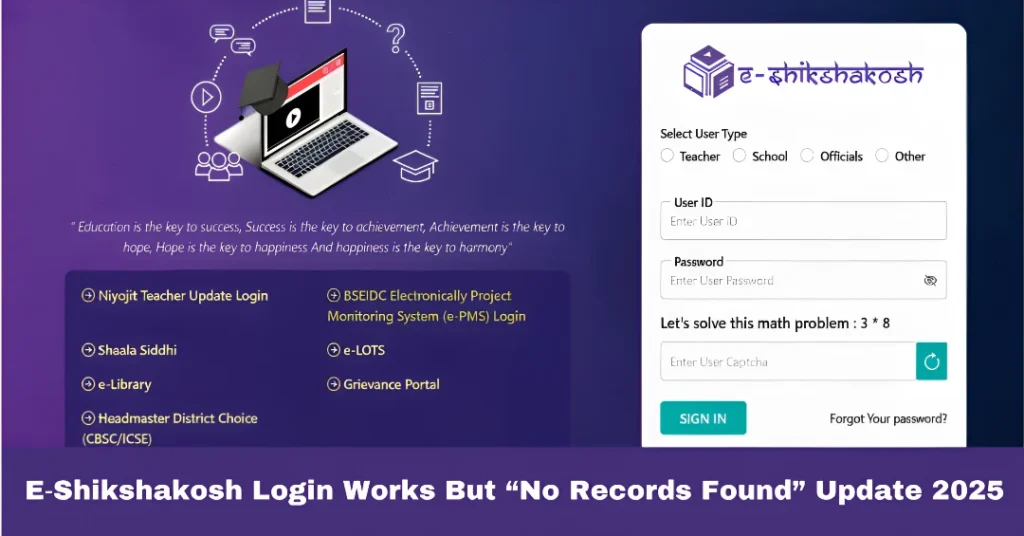
E‑Shikshakosh Login Works But “No Records Found” Update 2025
E‑Shikshakosh Login Works But “No Records Found” Update 2025
If you can successfully log into the E‑Shikshakosh portal but see the message “No Records Found” when you try to access your data, don’t panic. This is a common issue faced by many teachers and admins. It can happen for various reasons, but the good news is that it’s fixable. Let’s walk through what might be causing the issue and how you can get your records showing up properly.
Why Does “No Records Found” Appear?
Here are some common reasons why you might get the “No Records Found” message after logging in:
Your school may not have uploaded your personal or professional data (such as your Teacher ID, joining date, or posting details) into the system. If your school admin hasn’t updated the records, the portal won’t be able to display your information.
If your Teacher Code has been entered incorrectly in the system, or if there’s a mismatch in the details (name, district, subject), it could cause the portal to show no records for you.
Sometimes, even after your school uploads your details, it can take 48‑72 hours for the system to process and display your data. If you’ve just been added to the system, it might take some time for your records to appear.
If certain documents or fields in your profile (such as your qualifications, school records, or transfer details) are incomplete or missing, the portal might not display your information.
Occasionally, technical glitches or server issues can cause the portal to temporarily fail to retrieve or display data. These glitches may prevent the system from showing records even though the data is actually available.
You can also read:How to Update Profile & Service Records on E‑Shikshakosh 2025
Step‑by‑Step Guide to Resolve the “No Records Found” Issue
The first step is to check with your school admin to ensure that your Teacher ID, school, district, and other details are correctly entered in the system. If the data is missing or incorrectly entered, ask them to update it.
What to ask for:
Correct Teacher Code and personal details
School name, district, and posting details
Verification of joining date and transfer records (if applicable)
If your records were recently uploaded or updated, the system may still be processing them. Wait 48‑72 hours and check again.
If the issue persists after this period, follow up with your school admin to ensure the records were correctly submitted.
If your Teacher Code is showing as incorrect or if the system is rejecting it, verify that the code entered by your school admin matches the official records. Sometimes a small typographical error can prevent the system from finding your data.
Tip: Double-check the exact Teacher Code and date of joining to ensure there are no mismatches.
Check if all required documents (e.g., Aadhar card, qualification certificates, joining letter) have been uploaded correctly. Missing documents can sometimes prevent your profile from being fully activated in the system.
If you haven’t uploaded any documents yet, log into your E‑Shikshakosh profile and ensure everything is updated and uploaded.
If your data is up-to-date but the portal still shows “No Records Found,” try clearing your browser cache or accessing the portal in Incognito mode. Sometimes, outdated data stored in your browser can prevent the system from fetching the most recent records.
Steps:
Go to your browser settings and clear your browsing history and cache.
Alternatively, open a new Incognito window in your browser and log in again.
If none of the above steps work, there could be an issue with the E‑Shikshakosh portal itself. Sometimes, the system may be undergoing maintenance or facing temporary server issues.
Tip: Check the E‑Shikshakosh website for any announcements or news regarding system downtime or scheduled maintenance. You can also ask your school admin if they’ve received any notifications about the portal.
If you still can’t find your records after trying all the above steps, consider submitting a grievance through the portal’s Grievance Section. This is an official way to raise the issue with the system administrators.
Provide your Teacher ID, School Name, and District along with a detailed description of the problem. This will help the support team investigate and resolve the issue faster.
FAQs
Final Words
If your E‑Shikshakosh login works but you’re seeing the “No Records Found” error, it’s usually due to data entry issues, delays, or system glitches. By following the steps outlined above, you can resolve the issue and ensure your records are updated in the system. Remember to keep track of any changes, update your profile regularly, and contact your school admin or the helpdesk if needed.