How to Access E‑Shikshakosh Reports and Data Efficiently 2025
How to Access E‑Shikshakosh Reports and Data Efficiently 2025
If you’re a teacher or administrator in Bihar, E‑Shikshakosh is your go‑to portal for accessing various reports, service records, attendance data, and other key educational information. With so many features available, it can sometimes feel overwhelming to navigate. But don’t worry! In this article, I’ll guide you step‑by‑step on how to access E‑Shikshakosh reports and data efficiently, so you can make the most of the portal without any hassle.
Why Accessing E‑Shikshakosh Data is Important
The E‑Shikshakosh portal stores crucial information that helps teachers and education officials keep track of:
Being able to access and navigate these reports efficiently is important for maintaining accurate records, improving administrative tasks, and making sure that everything is up‑to‑date.
You can also read:Common Login Errors & Fixes on E‑Shikshakosh Portal 2025
Step-by-Step How to Access E‑Shikshakosh Reports and Data
Here’s a simple guide to help you navigate through E‑Shikshakosh and efficiently access the reports and data you need:
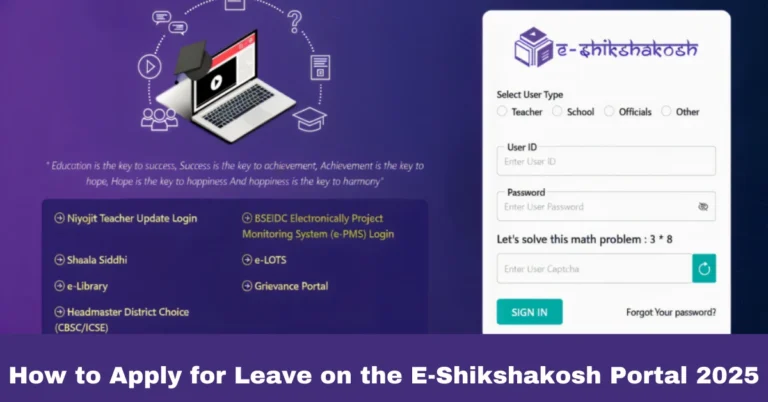
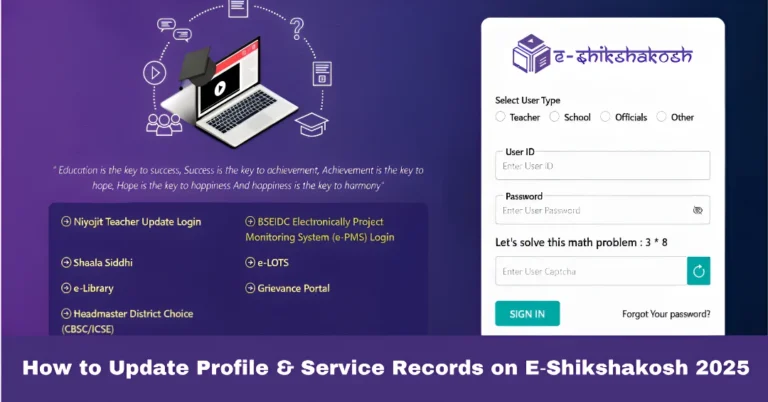
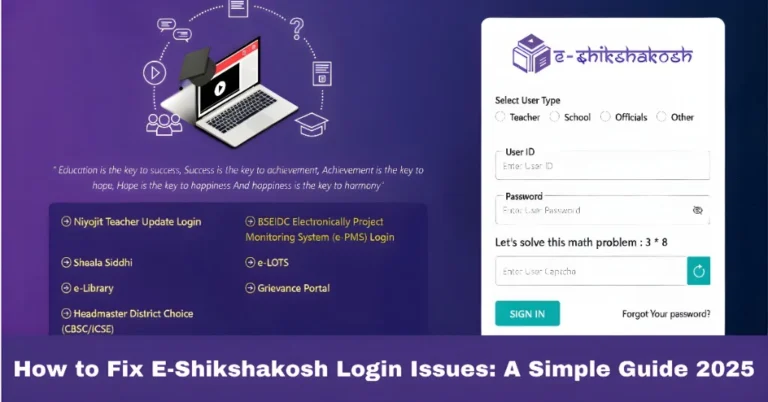
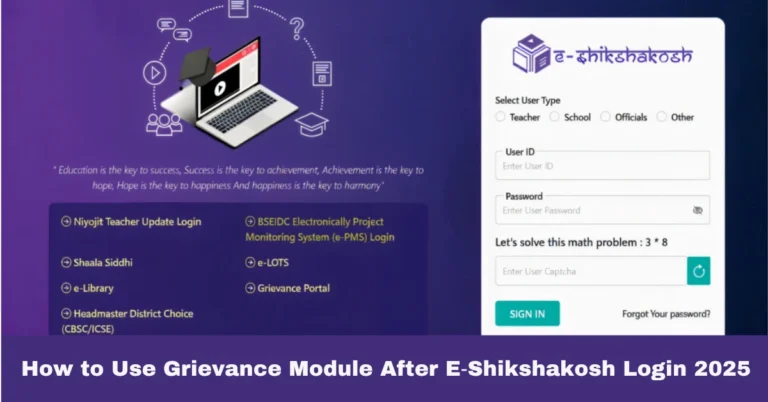
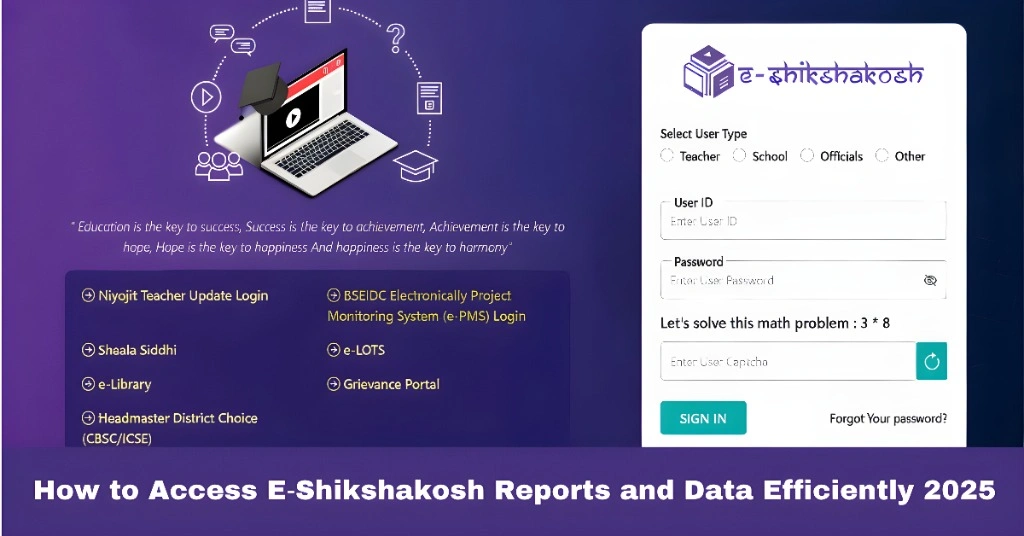
Start by logging into your E‑Shikshakosh account using your Teacher ID and password.
If you’re an administrator or headmaster, use the admin login credentials.
After logging in, you’ll be directed to the dashboard. This is where you can see an overview of your profile, attendance records, service history, and any pending tasks.
Once you’re on the dashboard, look for the “Reports” or “Data” section. This section will allow you to view various reports related to:
Attendance (daily or monthly attendance records)
Training (details on professional development programs completed)
Service Records (including promotions, transfers, etc.)
Leave Records (sick leave, casual leave, etc.)
Salary (payroll records, salary discrepancies)
Depending on what report you need to access, click on the relevant option. For example:
“Attendance Reports” will show you daily or monthly attendance data.
“Training Reports” will give you insights into the training programs you have completed.
“Service Record” will display your entire work history, including transfers, promotions, and other service-related details.
Tip: If you need a specific report (like monthly attendance or leave records for a particular month), look for filters on the report page to narrow down the data you need.
After selecting the report you need, the portal will display the relevant data.
You can typically download or export these reports in formats like PDF, Excel, or CSV for your convenience. This is especially useful for keeping a personal copy or sharing with others.
To download a report:
Look for the Download button on the report page.
Select the format (PDF, Excel, CSV) you prefer.
Save the file to your computer for easy access.
Tips for Efficiently Accessing Data on E‑Shikshakosh
To make your experience with the E‑Shikshakosh portal more efficient, here are some helpful tips:
When viewing reports, use filters to narrow down the data by date, school, district, or subject. This will help you quickly find the specific information you’re looking for.
If you frequently need access to certain reports (like attendance or leave records), consider bookmarking those specific pages within the portal for quicker access.
Regularly download your attendance and service reports to maintain personal records and keep track of your data.
Ensure you have a backup in case there’s an issue with the portal or you need to share the data with your school admin or authorities.
Always double-check your attendance and service records against your physical records or personal notes. If you notice any discrepancies, immediately report them using the grievance module or inform your school admin.
To stay on top of your professional development, regularly review your training reports. This will help you keep track of the programs you’ve completed and plan future development goals.
To avoid slow load times or system downtime, try to access the portal early in the morning or late in the evening when server traffic is lower.
FAQs
Final Words
Efficiently accessing E‑Shikshakosh reports and data is crucial for teachers and school officials to keep their records accurate and up-to-date. By following the steps in this guide, you’ll be able to quickly find and download the reports you need. Remember to use filters to narrow down your search, and always keep a personal backup of important records. This will save you time and ensure your data remains accurate, especially when it comes to things like attendance, transfers, and salary records.