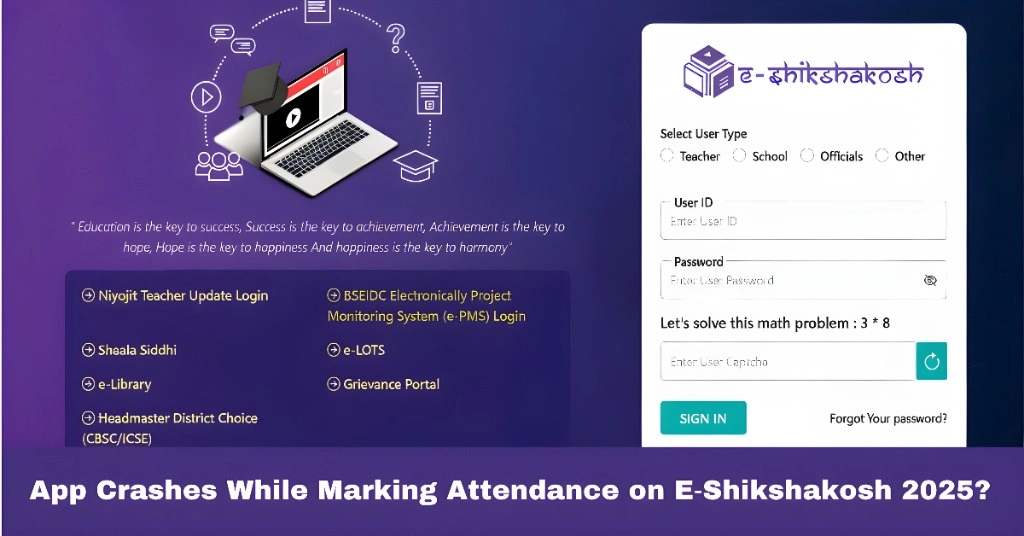
App Crashes While Marking Attendance on E‑Shikshakosh 2025?
App Crashes While Marking Attendance on E‑Shikshakosh 2025?
If the E‑Shikshakosh app crashes while you’re trying to mark attendance, it can be frustrating — especially when you’re on a tight schedule. Don’t worry! This is a common issue faced by many teachers, and the good news is that it’s usually easy to fix. In this article, I’ll guide you through the reasons behind the app crashes and provide simple solutions to get the app working smoothly again.
Why Does the E‑Shikshakosh App Crash While Marking Attendance?
The app may crash due to several reasons, and understanding these causes can help you troubleshoot effectively. Here are some of the common reasons why the app crashes:
If your phone has low storage space or is running many apps in the background, it may cause the E‑Shikshakosh app to crash when trying to mark attendance.
If your internet connection is weak or unstable, the app might struggle to sync attendance data with the server, causing it to freeze or crash.
Like any app, E‑Shikshakosh may experience bugs or glitches that can cause it to crash during specific actions, such as marking attendance. These bugs are often fixed in updates.
Using an outdated version of the app can cause compatibility issues, leading to crashes. App updates often contain bug fixes and performance improvements.
Sometimes, certain phones may not be fully compatible with the app due to differences in operating systems (especially older Android versions).
You can also read:Teacher ID Not Found on e‑Shikshakosh? Here’s What to Do 2025
Step‑by‑Step Guide to Fix the App Crash
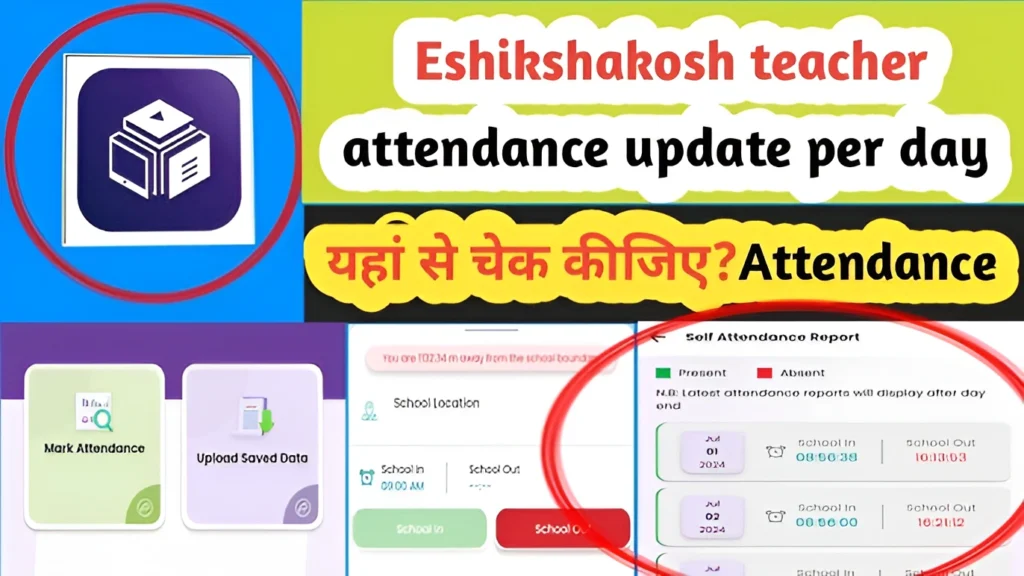
If the E‑Shikshakosh app crashes while you’re marking attendance, try these simple solutions:
The first thing you should do is clear the app’s cache. This can help fix minor issues caused by outdated or corrupted data.
Steps to clear cache:
Go to your phone’s Settings.
Find and select Apps or Applications.
Scroll down to find E‑Shikshakosh and select it.
Tap Storage, then select Clear Cache.
After clearing the cache, restart the app and try again.
If your phone is running low on storage, it can affect app performance. Try deleting unnecessary files or apps to free up space.
Steps to free up storage:
Go to Settings → Storage → Manage Storage.
Delete unwanted apps, photos, or files.
Restart your phone and then open the app to see if the issue persists.
Ensure your internet connection is stable. If you’re on WiFi, check if the connection is strong. If you’re using mobile data, try switching to a more stable connection.
Tip: If the app continues to crash despite a strong connection, try turning off and on your WiFi or mobile data to refresh the network.
If you’re using an older version of the E‑Shikshakosh app, update it to the latest version, as updates often contain important bug fixes and performance enhancements.
Steps to update the app:
Go to the Google Play Store.
Search for E‑Shikshakosh.
If there’s an Update button, click it to install the latest version.
If none of the above solutions work, try uninstalling and reinstalling the app. This can resolve any persistent bugs or issues.
Steps to reinstall the app:
Go to Settings → Apps → E‑Shikshakosh → Uninstall.
After uninstallation, go to Google Play Store, search for the app, and reinstall it.
If the app continues to crash even after trying all the solutions, check if your phone’s operating system is up to date. The app may not be compatible with older Android versions.
Steps to update your phone:
Go to Settings → Software Update → Check for updates.
Tips to Prevent Future App Crashes
Keep Your App Updated: Always use the latest version of the app to avoid bugs and compatibility issues.
Clear Cache Regularly: Clearing the cache helps maintain smooth performance.
Free Up Storage: Regularly check your phone’s storage and delete unnecessary files to keep your phone running smoothly.
Check for Maintenance Updates: Before trying to use the app, check if there are any scheduled maintenance updates on the E‑Shikshakosh portal.
FAQs
Final Words
Having the E‑Shikshakosh app crash while marking attendance can disrupt your day, but with the steps outlined above, you can troubleshoot and resolve the issue quickly. Make sure to keep the app updated, clear cache regularly, and check your internet connection to avoid future problems. If the problem persists, don’t hesitate to contact your school admin or use the grievance module for further assistance.