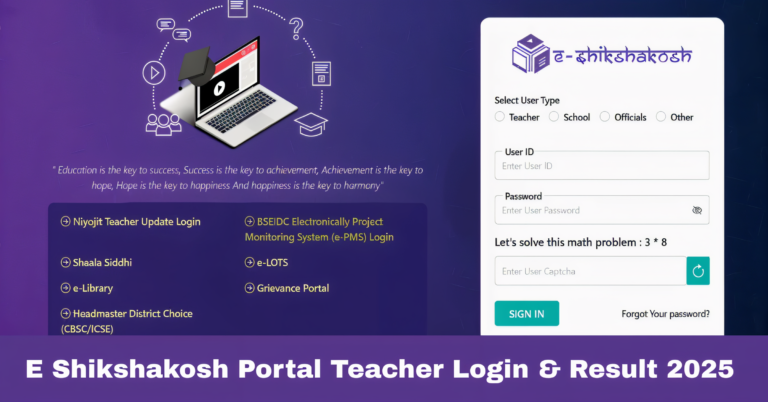
How to Download Exam Questions Using E-Shikshakosh App 2025
How to Download Exam Questions Using E-Shikshakosh App 2025
The E-Shikshakosh portal is not just a tool for managing attendance and school data, but it also provides teachers and students with easy access to exam questions, making the exam preparation process much smoother. Downloading exam questions from the E-Shikshakosh app is simple and convenient, allowing teachers and students to stay prepared for upcoming assessments. In this guide, we’ll walk you through the process of downloading exam questions using the E-Shikshakosh app.
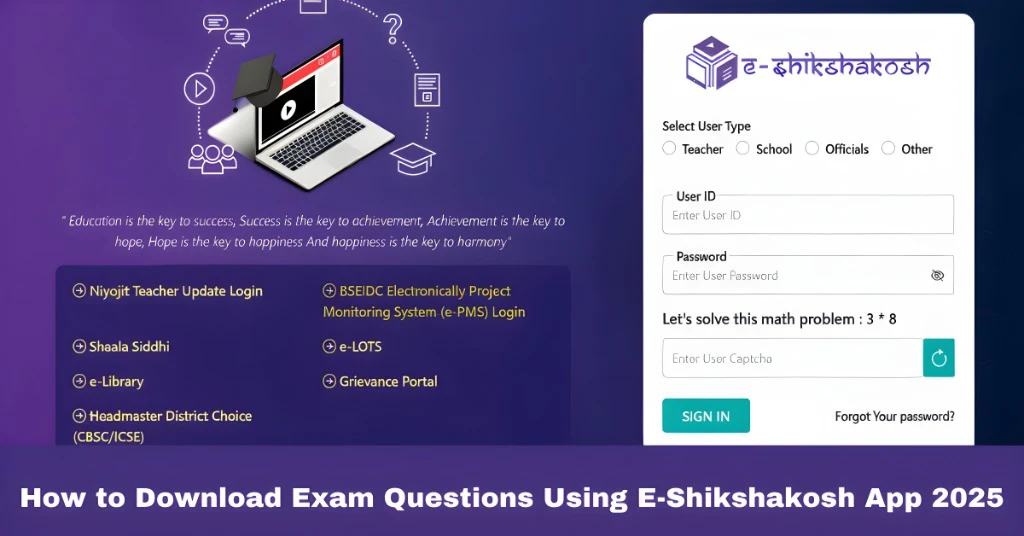
Install the E-Shikshakosh App
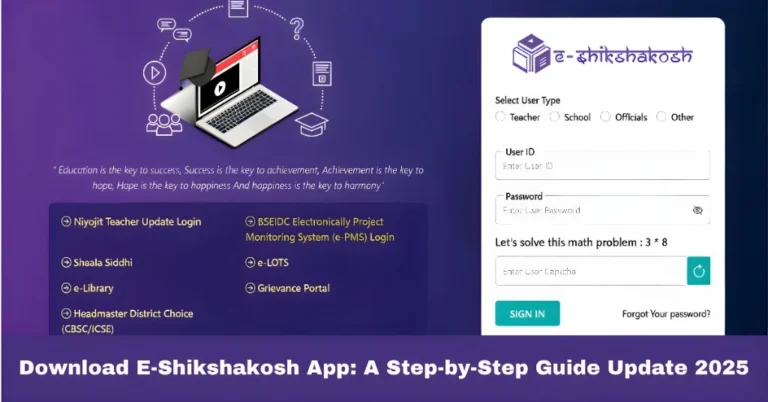
If you haven’t installed the app yet, go to the Google Play Store (for Android users) or App Store (for iOS users).
Search for “E-Shikshakosh” in the store and download the app.
Open the app once installed and log in using your registered credentials (username and password).
Navigate to the Exam Questions Section
Step 1: Once logged in, look for the “Exam” or “Examination” section in the app’s main menu.
Step 2: Tap on the “Exam Questions” or “Question Papers” option to proceed.
Tip: If you cannot find this section directly on the homepage, check under categories like “Resources” or “Educational Content”.
Select the Subject and Exam Type
After accessing the Exam Questions section, you’ll need to choose the subject for which you need the exam questions.
Select the grade/class and exam type (e.g., mid-term, final exam, sample papers).
If there are multiple options for a subject, make sure you select the correct one based on the exam you are preparing for.
Download the Exam Questions
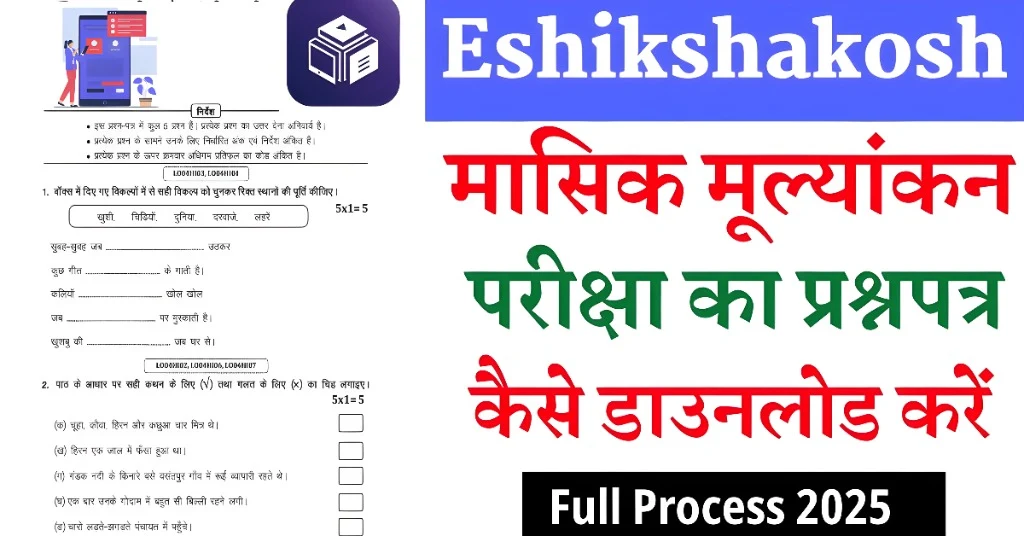
Once you’ve selected the subject and exam type, you’ll see a list of available exam papers.
Tap on the desired exam paper, and the app will show you a download button.
Click the “Download” button to save the exam question paper to your device. The file will typically be in PDF or another easily readable format.
Tip: Make sure you have enough storage space on your device before downloading the files.
Access and View the Downloaded Questions
Step 1: Once the exam question paper is downloaded, you can access it directly from the app under the “Downloaded Files” section or from your device’s file manager.
Step 2: Open the file to view the questions and start your preparation.
Tip: If the downloaded file does not open, ensure you have a PDF reader or compatible app installed on your device.
Download Previous Year’s Exam Questions
Issue: Sometimes, students and teachers need access to previous years’ exam questions for better exam preparation.
Solution:
- The E-Shikshakosh app often includes past years’ exam papers in the available list. To download them, simply select the year or term you’re interested in and follow the same process for downloading.
- If you cannot find past papers, try searching for them by subject or year in the app’s search bar.
Save Exam Questions for Offline Use
Issue: Students may want to download exam questions and access them offline to study without an internet connection.
Solution:
- The E-Shikshakosh app allows users to download exam papers for offline access. Once the questions are downloaded, you can open them at any time, even without an active internet connection.
- Ensure that your device has sufficient storage space for saving multiple exam question papers.
Manage Multiple Exam Papers Efficiently
Issue: With multiple exams and papers to prepare for, organizing downloaded exam questions can become cumbersome.
Solution:
- To avoid confusion, create specific folders on your device or within the app to organize the downloaded exam papers by subject or class.
- The E-Shikshakosh app may also offer features to tag or mark important papers for easy access.
Tips for Efficient Downloading of Exam Questions
Check for App Updates: Ensure you are using the latest version of the app for a smooth experience and to access the most recent exam papers.
Download in Advance: To avoid any last-minute issues, download the exam papers well before the exam day.
Ensure Stable Internet Connection: A stable internet connection will ensure that the files download without interruptions or errors.
Organize Downloaded Files: Keep your downloaded exam papers organized in specific folders so you can find them easily later.
FAQs
Final Words
Downloading exam questions from the E-Shikshakosh app is a quick and easy process that can significantly aid in exam preparation. By following the simple steps in this guide, you can access and download the exam papers you need, ensuring you’re always ready for your exams. Whether you’re a teacher looking for sample papers or a student preparing for an upcoming test, the E-Shikshakosh app has you covered.