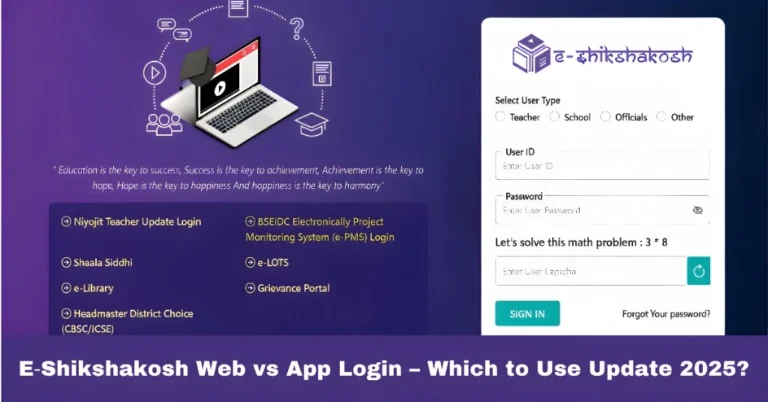
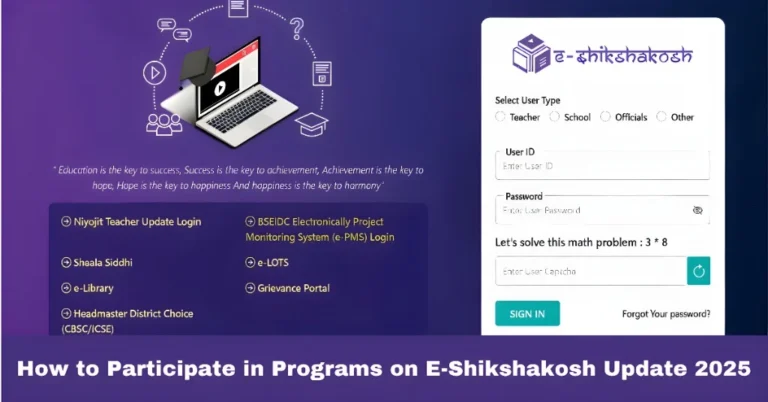
Forgot Password or Wrong Mobile on E‑Shikshakosh 2025?
Forgot Password or Wrong Mobile on E‑Shikshakosh 2025?
If you’ve forgotten your password or the mobile number linked to your E‑Shikshakosh account is incorrect, don’t worry! It’s a common issue and there are simple ways to get back on track. In this article, we’ll walk you through the steps to recover or update your password and mobile number, so you can continue using the portal without any hassle.
What is E‑Shikshakosh and Why It Matters
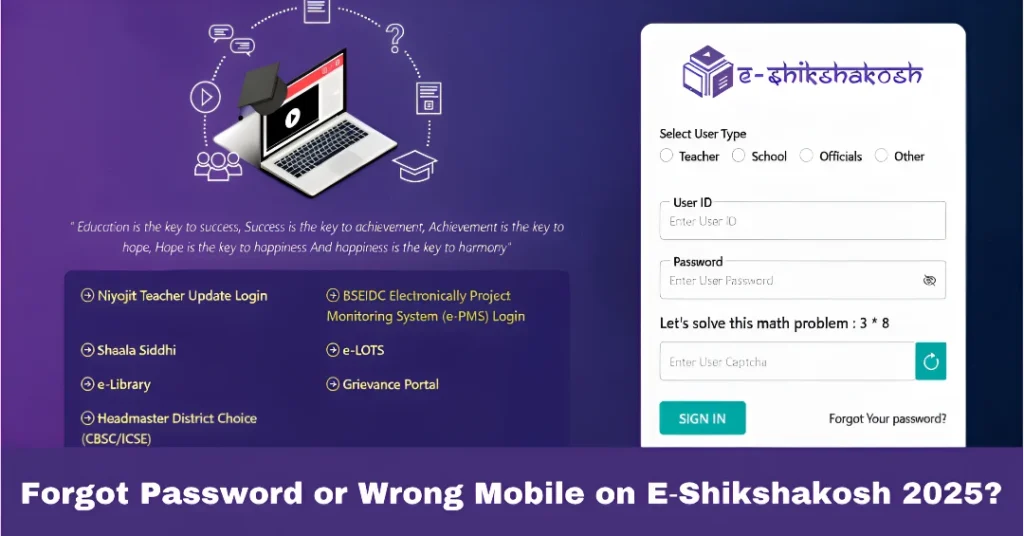
The E‑Shikshakosh portal is a digital platform introduced by the Bihar Education Project Council to help manage the education system in Bihar. It’s used by teachers, headmasters, and education officials for a variety of tasks such as:
Your password and mobile number are crucial for logging into the portal and accessing your personal and professional data. If you forget your password or the mobile number linked to your account is wrong, you might face difficulties logging in.
You can also read:E-Shikshakosh Teacher ID Reset: A Step-by-Step Guide 2025
Forgot Password on E‑Shikshakosh? Here’s What to Do
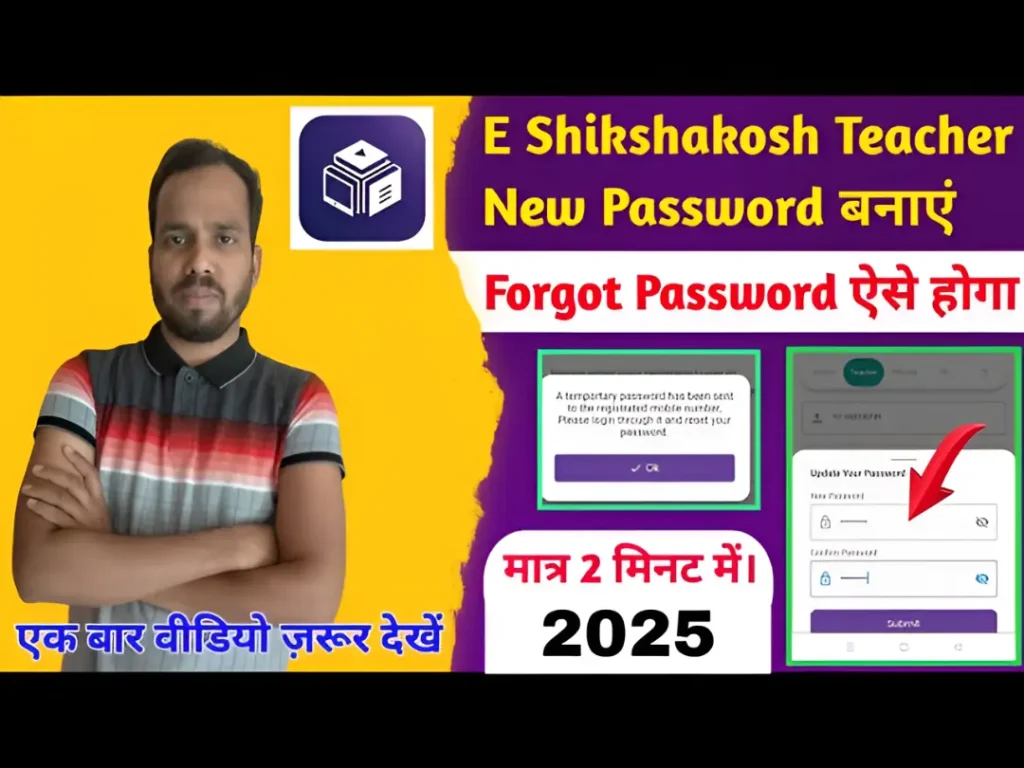
If you’ve forgotten your password, don’t panic. E‑Shikshakosh offers a straightforward way to reset your password:
After entering the required details, you will receive a password reset link on your registered mobile or email.
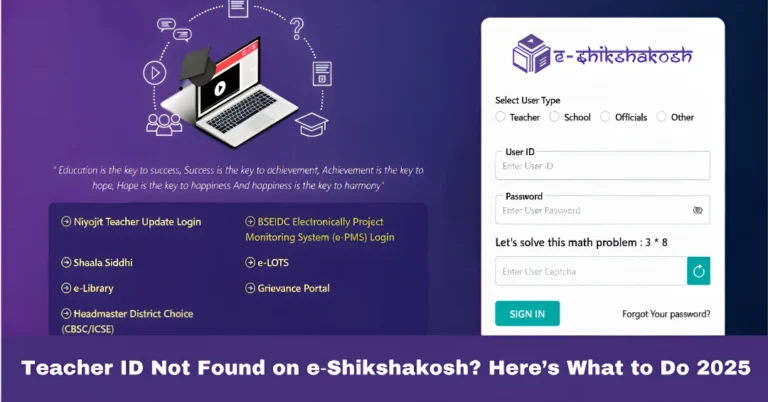
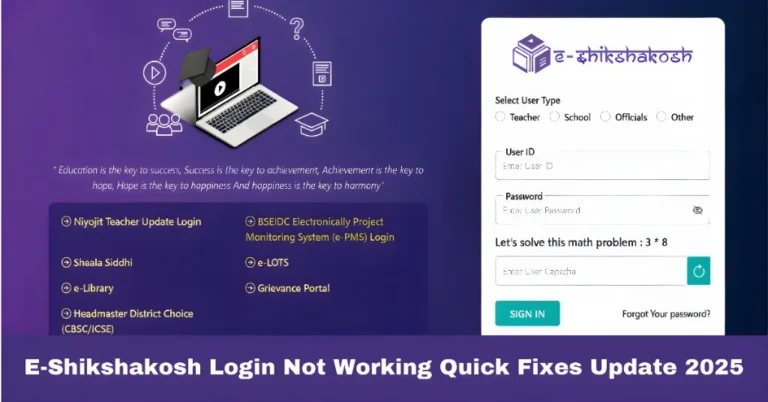
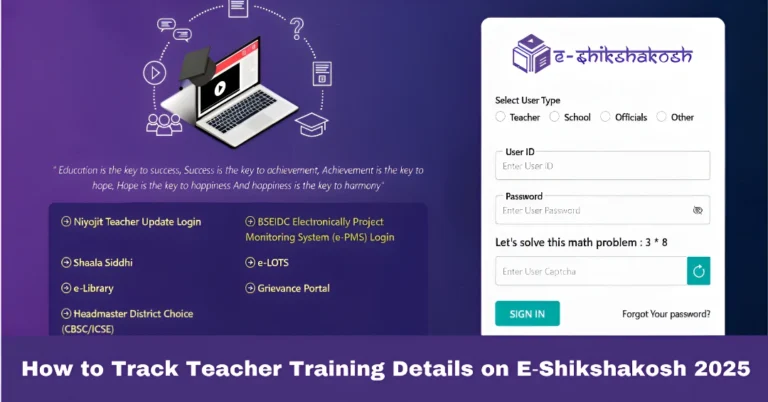
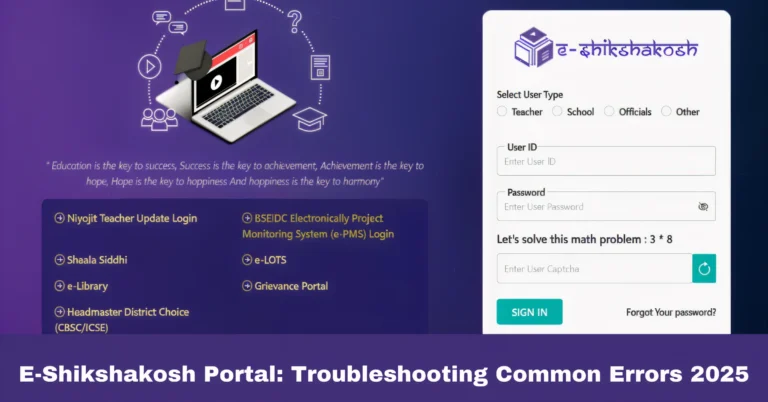
On the login page, click on the “Forgot Password” link.
You will be prompted to enter your Teacher ID or registered mobile number.
Once you’ve requested the password reset, check your registered mobile number or email for the reset link. Make sure to:
Ensure your mobile number is linked to the account correctly.
Check your spam/junk folder in case the email lands there.
Click on the reset link sent to your mobile/email.
Enter a new password that is secure and easy for you to remember.
Confirm your new password and log in using the updated credentials.
After resetting your password, it’s a good idea to verify and update your mobile number and email on the portal to avoid future issues. This can be done from the profile settings section.
Wrong Mobile Number Linked to Your E‑Shikshakosh Account? Here’s How to Fix It
If the mobile number linked to your E‑Shikshakosh account is incorrect, you’ll need to update it in the system. Here’s what to do:
Before making changes, ensure that you have your Teacher ID and any other relevant details (e.g., school name, district) handy to verify your identity.
To update your mobile number, the first step is to contact your school admin or principal. They have the authority to update your details in the system. Here’s what they need to do:
Update the mobile number associated with your profile.
Log into the E‑Shikshakosh portal using their admin credentials.
Access the Teacher List section and search for your Teacher ID.
After your mobile number is updated, it may take a few hours to a day for the changes to reflect in the system. Once the update is complete, you should be able to receive password reset links, OTPs, and other important notifications on your new number.
If your school admin is unable to update your number, you can file a grievance through the portal. Follow these steps:
Submit the grievance for further action by the system administrators.
Go to the Grievance section on the portal.
Select “Update Contact Information” as the reason for your grievance.
Provide your Teacher ID, correct mobile number, and any supporting details.
Tips to Avoid Future Login Issues
Keep Your Contact Details Updated: Always ensure that your mobile number and email are updated in the portal. If you change your contact details, inform your school admin immediately so they can make the necessary updates.
Create a Strong, Memorable Password: When setting your new password, make sure it’s a combination of letters, numbers, and symbols to keep your account secure.
Use a Password Manager: If you have trouble remembering passwords, consider using a password manager to securely store your login information.
Regularly Check Your Account: Log in to the E‑Shikshakosh portal periodically to ensure everything is working smoothly and to keep your contact details up to date.
FAQs
Final Words
Forgetting your password or having the wrong mobile number linked to your E‑Shikshakosh account can seem like a big hurdle, but it’s easy to fix with the right steps. Follow the guide above to reset your password or update your contact information. Don’t forget to keep your details updated regularly to avoid future login issues.