Common Login Errors & Fixes on E‑Shikshakosh Portal 2025
Common Login Errors & Fixes on E‑Shikshakosh Portal 2025
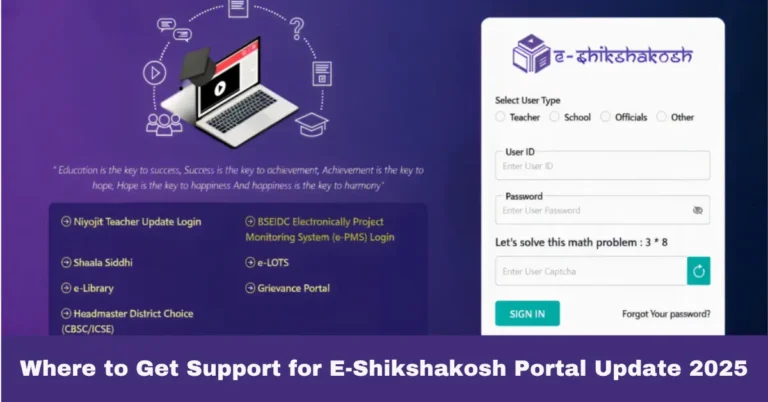
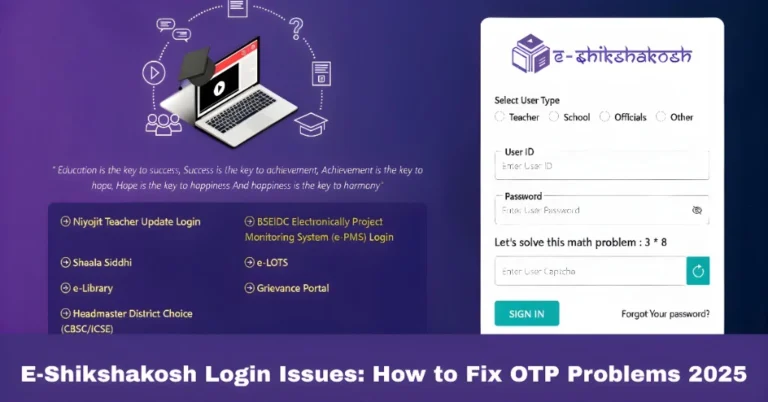
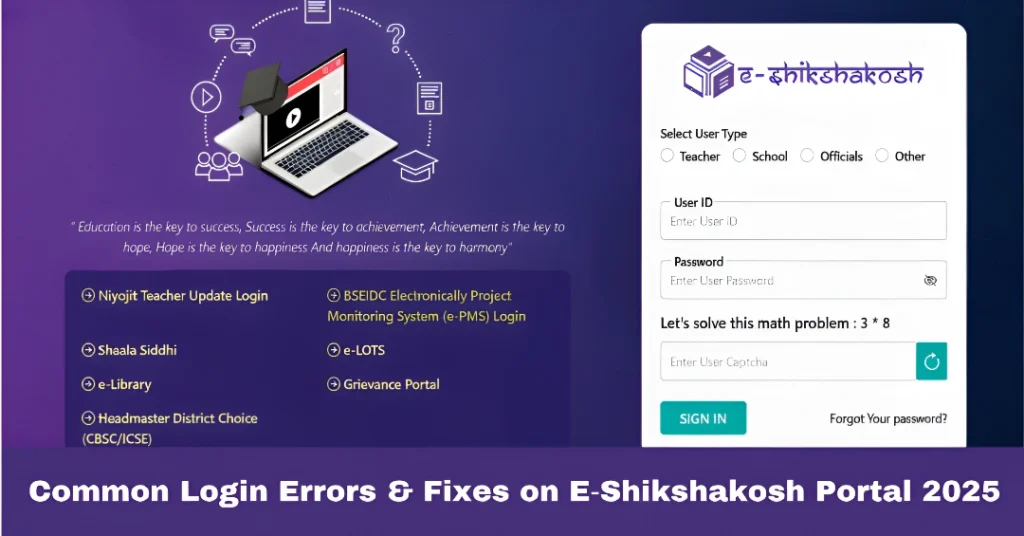
If you’re a teacher in Bihar and have faced issues logging into the E‑Shikshakosh portal, you’re not alone. Many teachers encounter login errors that can prevent them from accessing their profiles, marking attendance, or checking records. The good news is that most login errors can be easily resolved with a few simple steps. In this guide, I’ll walk you through the most common login errors on the E‑Shikshakosh portal and how to fix them.
Common Login Errors on E‑Shikshakosh Portal
Problem: The most common issue is the “Invalid Teacher Code” error when logging in. This typically happens when the code you’re entering doesn’t match the system records.
Possible Causes:
Typographical errors (e.g., missing digits, extra spaces).
Mismatch between the records entered by the school admin and the official records.
If the Teacher Code has been recently updated or changed.
Fix:
Double-check your Teacher Code. Make sure there are no spaces before or after the code, and that you’re entering it exactly as provided.
Contact your school admin to verify that the correct Teacher Code is updated in the system.
Problem: If you’re entering the right Teacher Code, but your password is showing as incorrect, you won’t be able to access your account.
Possible Causes:
Forgotten password or entered incorrectly.
Caps lock is on or keyboard issues (typing uppercase when you intend lowercase).
Fix:
If you forgot your password, use the “Forgot Password” link on the login page to reset it.
Follow the password reset instructions sent to your email or phone.
Try typing the password manually again to avoid errors due to autofill or saved passwords in your browser.
Problem: You log in with the correct Teacher Code and password, but the system shows “No Records Found”.
Possible Causes:
Your school or district has not yet uploaded your data into the system.
Your Teacher Code or school details were entered incorrectly by your school admin.
Your records haven’t been synced with the portal yet (especially if you’ve just joined the system).
Fix:
Contact your school admin to verify that your profile details (Teacher Code, school name, etc.) are updated correctly.
If your school just uploaded the data, it may take 72 hours for your records to appear.
Follow up with your school if the issue persists.
Problem: After several unsuccessful login attempts, you may see the “Account Locked” message.
Possible Causes:
Multiple failed login attempts due to incorrect Teacher Code or password.
Security measure to prevent unauthorized access.
Fix:
Wait for 24 hours: Account lockouts are typically temporary. After 24 hours, you should be able to try logging in again.
If the issue persists, contact the E‑Shikshakosh support team or your school admin to unlock your account.
Problem: When you try to log in, you get a server error or see a message saying “Service Unavailable”.
Possible Causes:
Server downtime: The portal might be undergoing maintenance, or there could be an unexpected technical issue.
Heavy traffic: During peak login times (e.g., morning attendance), the system may experience high traffic, leading to temporary outages.
Fix:
Wait for a few minutes and try again. Most server errors are temporary and resolve after a short time.
Check if there are any official announcements from the E‑Shikshakosh team regarding maintenance or server issues.
Tips to Avoid Login Issues on E‑Shikshakosh Portal
Always verify that you’re using the correct Teacher Code and password. Ensure that there are no extra spaces or typos when entering the details.
Make sure your email address and mobile number are updated in the system so you can reset your password easily if needed.
An outdated browser can sometimes cause issues with logging in. Make sure you’re using a modern browser (like Chrome, Firefox, or Edge) and keep it updated.
Create a password that’s both strong and easy for you to remember. Avoid using simple or repetitive passwords.
If you’re having trouble logging in, try clearing your browser’s cache and cookies. Sometimes, outdated or corrupted data in the cache can prevent the system from loading correctly.
If you’re facing issues logging in through your regular browser window, try logging in through Incognito Mode to rule out any browser-specific issues.
You can also read:Uploading Certificates in E‑Shikshakosh Quick Tips 2025
FAQs
Final Words
Login issues on E‑Shikshakosh can be frustrating, but most of the time, they are easy to resolve. Whether it’s an incorrect Teacher Code, forgotten password, or server error, following the troubleshooting steps outlined in this article can help you get back to marking attendance and managing your records in no time. Remember to keep your profile details updated and stay proactive in addressing any login issues you encounter.