E‑Shikshakosh Password Recovery Guide for Teachers and Staff
E‑Shikshakosh Password Recovery Guide for Teachers and Staff
If you’re a teacher or school staff member in Bihar and you’ve forgotten your login password for E‑Shikshakosh, or your registered mobile number has changed — don’t worry. It happens. This guide will walk you through how to recover or reset your password, what you can do if your mobile number is wrong, and how to avoid similar issues later. I’ll keep it simple and clear — no confusing jargon.
Why You Might Need Password Recovery
Here are a few common scenarios:
In any of these cases, you’ll need to reset or recover your password so you can log in, mark attendance, access reports, upload documents, and more.
You can also read:E‑Shikshakosh Transfer Process What Happens If You Miss It?
Step by Step How to Recover Your Password
Here’s what you should do:
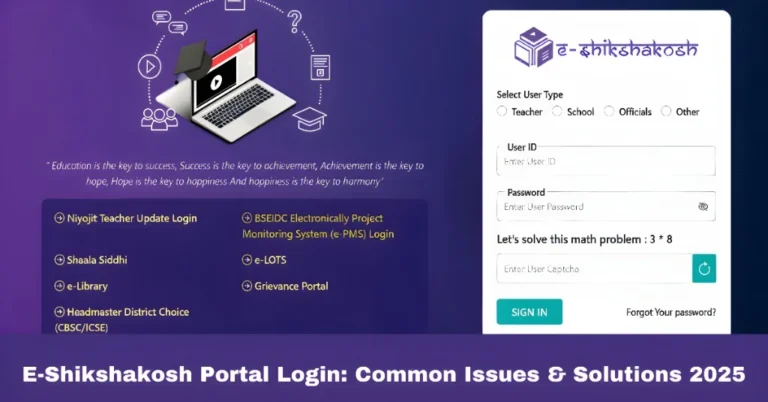
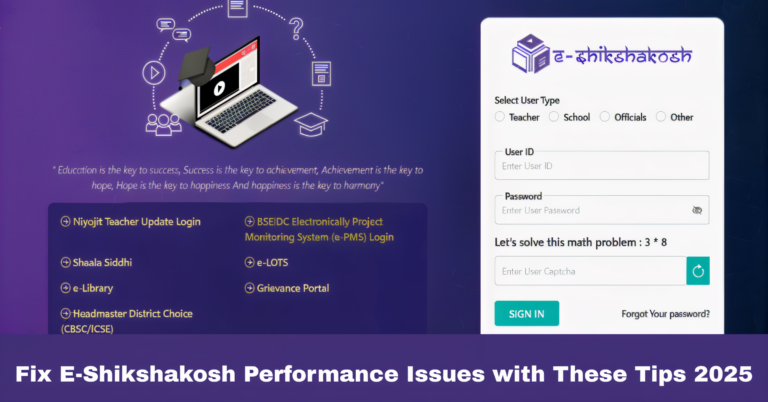
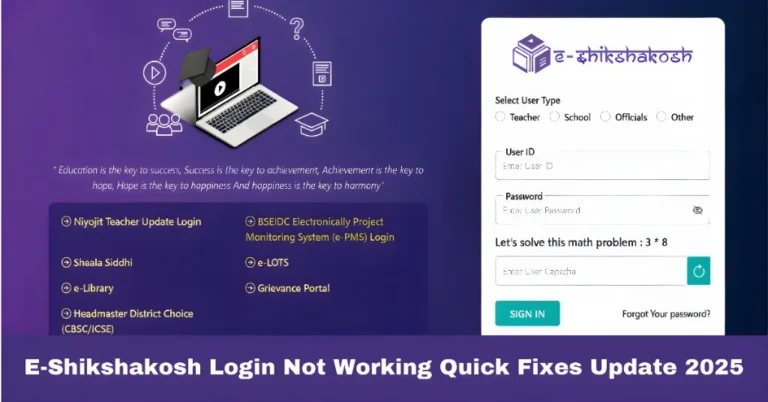
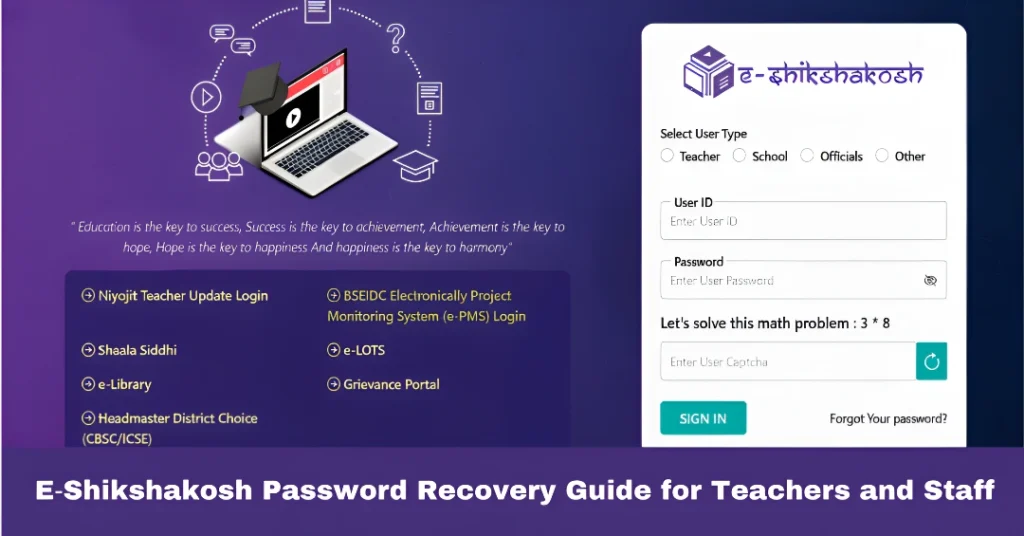
Open your browser (or the app) and navigate to the login area. You’ll usually see a link like “Forgot Password” or “Reset Password”. For example, the official portal shows “Forgot Your …” near the login form. eshikshakosh.bihar.gov.in+1
This will prompt you to start the recovery process. It may ask for your User ID (Teacher ID) and registered mobile number or email.
Make sure you enter the exact Teacher ID that was assigned to you. Also, use the mobile number that’s registered in the system. If your number has changed, you’ll need to follow the “mobile number change” steps (see next section).
The system will send an OTP to your registered mobile number (or email). Use that code inside the portal to confirm your identity.
Once verified, you’ll be prompted to enter a new password. Choose something strong but memorable. Confirm it, then save. After this you should be able to log in again.
Use your Teacher ID + new password. If you’re able to log in, good — job done. If still not, move to troubleshooting.
What to Do if Your Registered Mobile Number is Wrong or Changed
If you changed your mobile number (or it’s not registered correctly), the password reset via OTP may fail. Here’s how to handle that:
Troubleshooting What If Password Recovery Doesn’t Work?
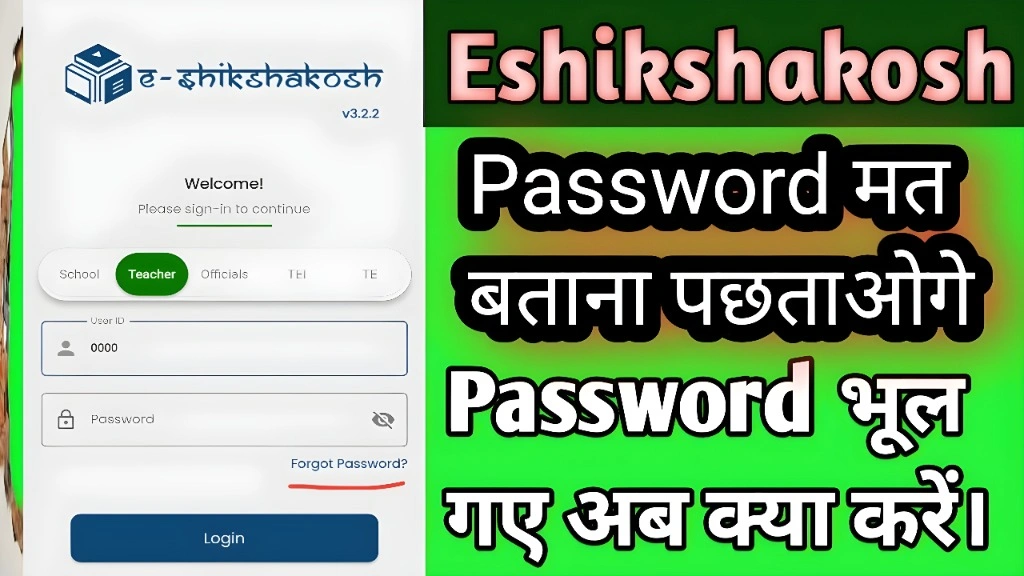
Here are issues you might still face and what you can do:
No OTP received?
Check your network. Make sure the mobile number is correct. Ask your school admin to verify your number in the portal.
Forgot Teacher ID too?
If you don’t remember your user ID, ask your Principal or district MIS to check your profile and confirm your ID.
Still can’t log in after resetting?
Clear your browser cache, try another browser or device. If you used the app, reinstall it.
Account appears locked or disabled?
Sometimes multiple failed login attempts lead to a lock. Contact your school admin or helpdesk to unlock or assist.
Tips to Prevent Future Login Issues
FAQs
Final Words
Forgotten passwords or wrong mobile numbers can be annoying, but with the steps above you can get access to the E‑Shikshakosh portal again quickly. It’s about verifying your identity, resetting safely, and keeping your profile data current. After you’re back in, take a moment to update your contact details and ensure you’ll face fewer issues next time.