Update Personal Info on E‑Shikshakosh Step Guide 2025

Keeping your personal information up to date on E‑Shikshakosh is essential for smooth functioning of your teaching career in Bihar. Whether it’s updating your contact number, correcting your name, or updating your bank details, making sure your data is accurate is crucial for your salary, transfers, and benefits. This step‑by‑step guide will show you how to easily update your profile and ensure your information is correct.
Update Personal Info on E‑Shikshakosh Step Guide 2025

Why You Should Keep Info Updated

Outdated or incorrect info on E‑Shikshakosh can cause major problems: salary delays, transfer issues, missing pay slips, or even denial of benefits. Since many official decisions (pay, posting, attendance) rely on your profile data, it’s best to keep everything correct — mobile number, bank details, name spelling, category, and more.

Also, the portal sometimes requires you to upload documents (certificates, ID proofs, bank proof) — having correct data speeds up verification and avoids rejections.

You can also read:Change Bank Details on E‑Shikshakosh Portal Update 2025

Step‑by‑Step Update Your Profile on E‑Shikshakosh
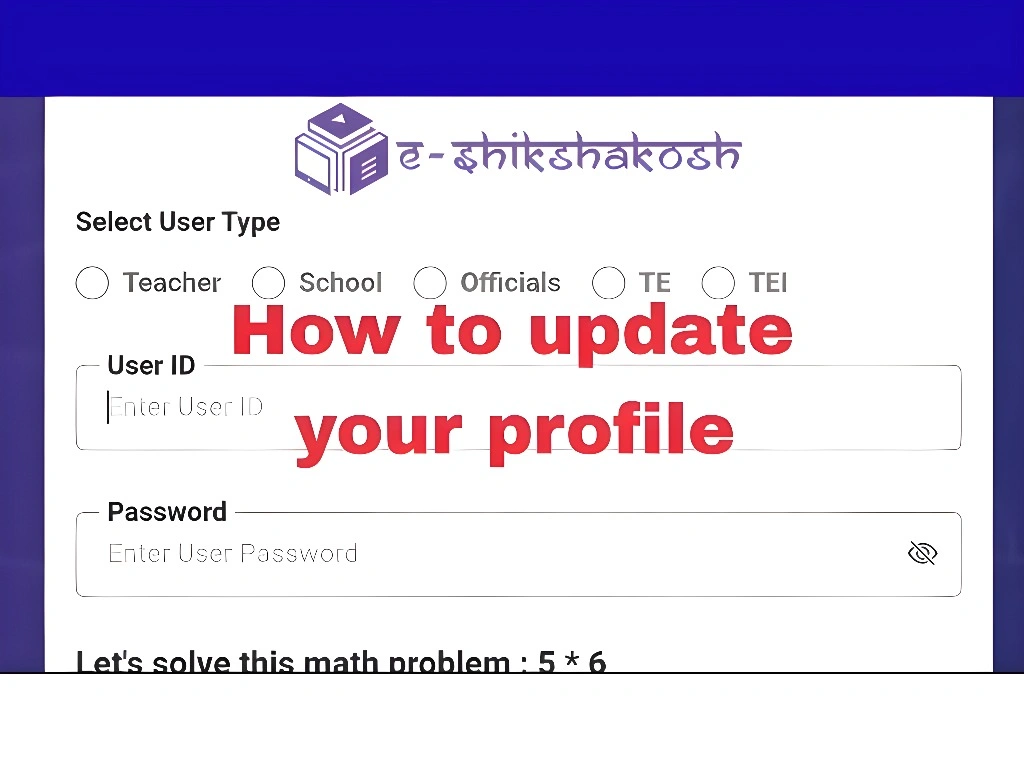
Step‑by‑Step Update Your Profile on E‑Shikshakosh
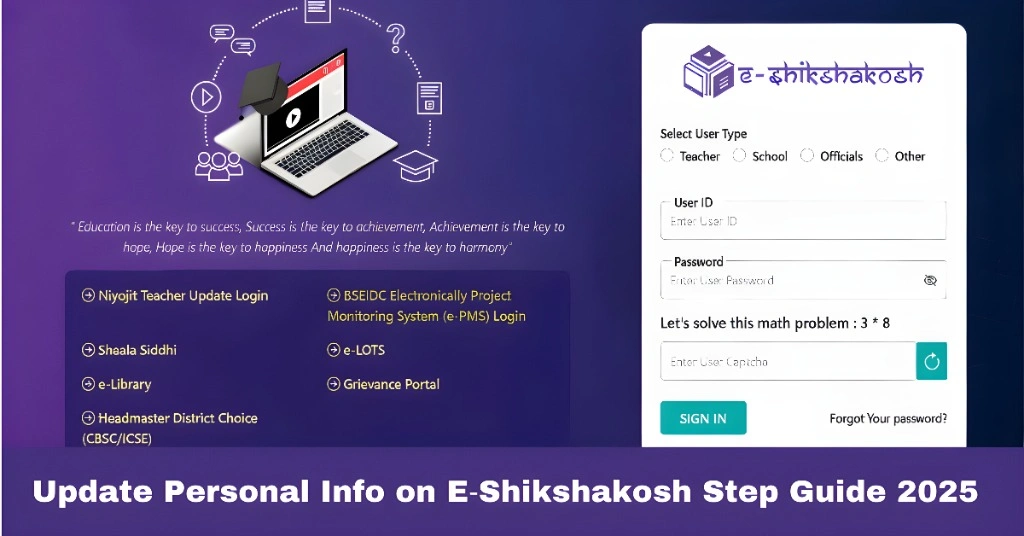
  • Open a web browser and go to the official E‑Shikshakosh portal. Log in with your Teacher ID and password.
  • After login, navigate to the “My Profile” or “Teacher Profile / Teacher Registration” section.
  • Click on “Edit Profile” (or “Update Profile”) button. This will allow you to change certain fields — for example, mobile number, bank details, address, or other personal information.
  • Make the required changes carefully. Double-check spelling, number correctness, avoid extra spaces.
  • If you need to upload supporting documents (like updated bank proof, ID card, certificate), prepare scans/files as per portal’s requirements. Upload them when prompted.
  • Submit the update request. Note: After submission, the changes may need approval by school admin or district officer before they reflect. Until approval, your old data may remain active.

How to Correct Mistakes in Your Profile

Sometimes, we make mistakes while entering personal details. Whether it’s a spelling error in your name or an incorrect bank account number, you can easily correct these mistakes. Just follow the same process as updating your profile — navigate to the “Edit Profile” section, make the changes, and submit for approval. However, it’s important to verify all changes with the school admin before assuming they have been approved.

Uploading Documents — What You Need to Know

If your updates require document uploads (such as bank proof, certificates, etc.), make sure your documents are in the correct format and meet the portal’s requirements. Most portals accept PDF or JPG files. Keep file sizes within the allowed limit and make sure scans are clear and legible to avoid any rejections or delays in approval.

What You Can Update (Common Fields)

  • Mobile number or email
  • Bank account / bank details (for salary/pension)
  • Address or contact addressv
  • Name, spelling corrections, or corrections in personal info like designation, category, etc.
  • Uploaded documents: educational certificates, identity proofs, updated KYC, etc.

What to Do After Submitting Changes

  • Check your profile after some time to see if changes reflect. If not, verify with your school admin or district officer — sometimes their approval is required.
  • Keep copies/screenshots of updated info and submission page, in case verification is delayed.
  • If you uploaded documents (bank proof, ID), ensure they meet portal requirements — scan quality, file format (PDF/JPG), size limits — to avoid rejection.
  • Avoid making frequent unnecessary changes — only update when absolutely needed (address change, bank, contact info, etc.).

What If You Face Problems During Update

  • Ensure you are logged in using your correct account type (Teacher). Sometimes, the “Edit Profile” button appears only for certain user types.
  • If the “Edit Profile” option is missing — your account may be locked or require approval. Contact school admin or district support.
  • Document upload failing? Check file format, size, clear scan, no extra pages. Rename file simply if portal rejects odd filenames.
  • After submission, if changes not reflecting for long — ask your school admin to approve pending updates or follow up with district education office (DEO).

FAQs

Go to the “Edit Profile” section after logging in, make the necessary changes to your mobile number or email, and submit the changes for approval.

Yes, you can. Just go to “Edit Profile,” make the corrections, and submit the changes. Approval by your school admin may be required.

You may need to upload a scanned copy of your updated bank passbook or bank statement. Ensure the scan is clear and in the correct format (PDF/JPG).

It depends on your school or district office. Typically, changes will be approved within a few days, but if it’s delayed, you can check with your school admin.

Check that you are logged in under the correct user type (Teacher). If the option is still missing, contact your school admin or district support for assistance.

Final Words


Updating your personal info on E‑Shikshakosh may feel a bit technical, but once you know the steps, it’s easy and quick. Accurate info ensures you get salary on time, records are clean, and you avoid hassles with transfers or benefits.

Take a few minutes today to check your profile — and keep it updated. If something goes wrong or you are stuck, contact your school admin. Better safe than sorry.

Similar Posts

Leave a Reply

Your email address will not be published. Required fields are marked *