Teacher ID Not Found on e‑Shikshakosh? Here’s What to Do 2025
Teacher ID Not Found on e‑Shikshakosh? Here’s What to Do 2025
If you’re a teacher in Bihar and you’ve tried to log into the e‑Shikshakosh portal but your Teacher ID is missing, don’t worry. This is a common issue that many teachers face, and fortunately, it’s easy to fix. In this article, I’ll explain why your Teacher ID might not show up, step-by-step solutions to resolve the issue, and tips to avoid future problems. Let’s get your Teacher ID sorted out, so you can make full use of the portal’s features for attendance, training, and more.
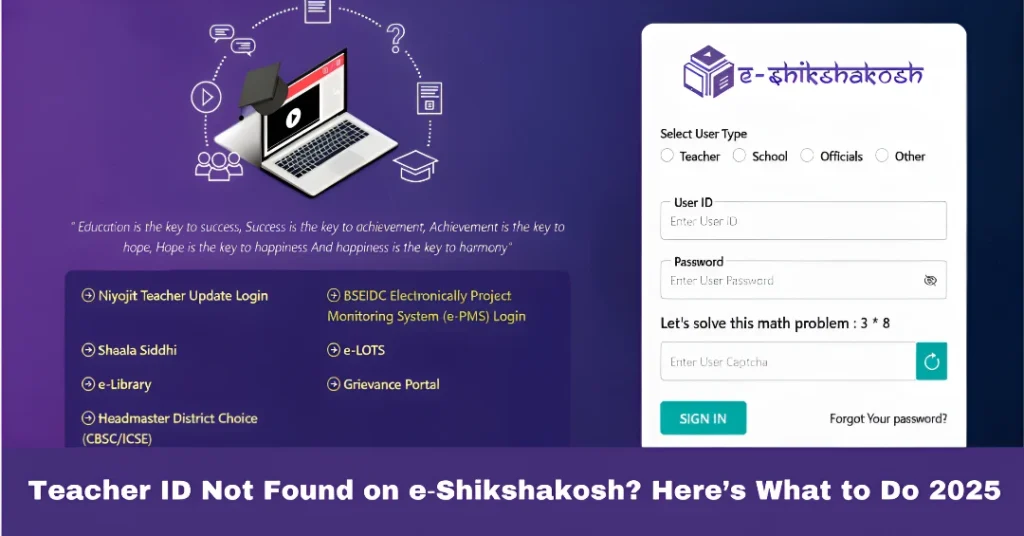
Why Your Teacher ID Might Not Be Found
The e‑Shikshakosh portal is a crucial tool for teachers in Bihar, helping manage attendance, training, service records, and other essential data. However, there are several reasons why your Teacher ID might not be appearing on the system, including issues with data entry, system updates, or simple delays. Let’s dive into the common causes and how to address them quickly.
You can also read:How to Use Grievance Module After E‑Shikshakosh Login 2025
Common Reasons Why Teacher ID is Missing
If your name, school details, or joining information have not been properly entered into the system, your Teacher ID may not appear in the portal. This often happens when the school has not yet updated or verified your details in the e‑Shikshakosh database.
Another common reason is incorrect data, such as a typo in your name, school name, Teacher code, or mobile number. If these details don’t match the official records, your ID might not show up.
Sometimes the system takes up to 72 hours or more to generate and sync your Teacher ID after your data is entered. This delay can cause your Teacher ID to not appear immediately.
How to Fix the “Teacher ID Not Found” Error
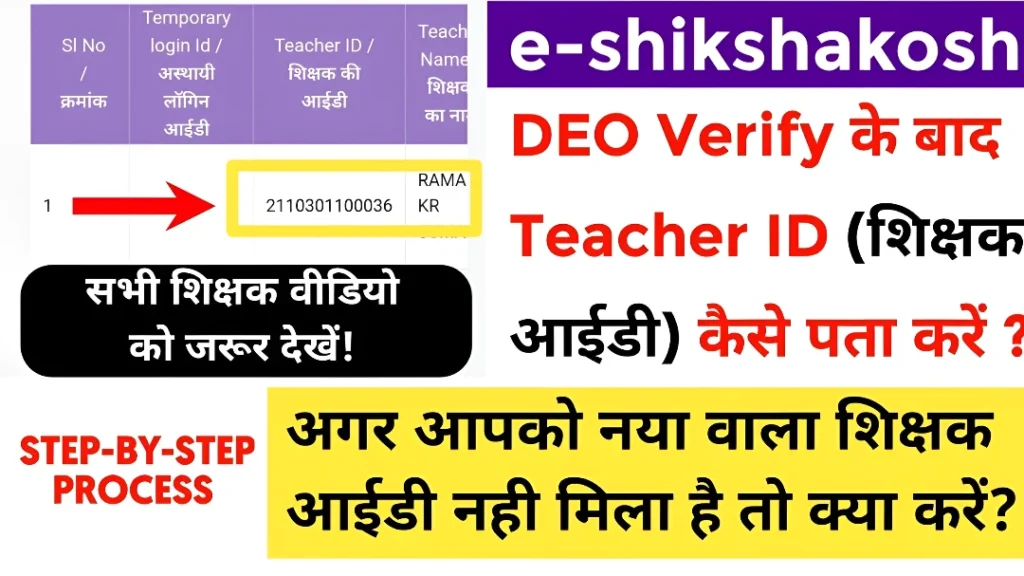
The first step is to talk to your Principal or school administration. Ask them to verify your details in the portal, and ensure that your Teacher ID has been correctly uploaded. If the information is missing or incorrect, they can enter or update it.
Verify that all your personal information, such as your Teacher code, school name, and posting district, is entered correctly in the system. Sometimes, errors in data entry cause the Teacher ID not to appear.
If your school has recently uploaded your information, it might take up to 72 hours for your Teacher ID to be generated and appear in the portal. Give it some time, and try again later.
If your ID still isn’t showing after 72 hours, you can ask your school to submit a request through the Grievance Section in the portal. This will escalate the issue and help ensure your Teacher ID is generated.
Additional Tips to Ensure Smooth Access to e‑Shikshakosh
After your Teacher ID is successfully created, make it a habit to log in once in a while. This will help you stay on top of any updates, especially if you’ve been transferred or promoted.
Always keep your contact details updated in the system. This ensures that you’ll receive all notifications about your login, updates, and important information regarding your work.
Avoid waiting until the last moment to check or update your Teacher ID. This will ensure that you don’t face delays when you need to access the portal, especially during important tasks like marking attendance or applying for leaves.
How to Stay on Top of e‑Shikshakosh and Keep Your Profile Updated
Maintaining an up-to-date profile on e‑Shikshakosh ensures that all your records, including attendance and service records, are accurately captured and updated. Here’s how you can stay on top of the portal:
FAQs
Final Words
Missing Teacher IDs on e‑Shikshakosh is stressful but usually fixable. With the steps above, you’re not alone — you just need to check your data, talk to your school admin, wait for the system update, and escalate if needed.
Once your ID is active, you’ll have access to all the portal features — mark attendance, check training, service records, and much more.