How to Fix E-Shikshakosh Teacher Attendance GPS Error 2026
If you’re a teacher using E-Shikshakosh for attendance and facing the GPS error, you’re not alone. Many teachers in Bihar experience issues where the GPS location doesn’t match or isn’t detected correctly when marking attendance. Here’s a simple guide to help you quickly fix the GPS error and get back on track with your work.

Why GPS Error Happens in E-Shikshakosh
Before diving into the fix, let’s understand why this happens:
Weak signal: The GPS needs a strong signal to determine your location accurately.
Location settings: Sometimes, the location feature might be disabled or not set properly on your phone or device.
App permissions: E-Shikshakosh might not have the necessary permissions to access your device’s GPS.
Software issues: There may be bugs or glitches in the app that cause the GPS data to fail.
You can also read:How to Resolve Invalid UDISE Code on E-Shikshakosh 2026
Step-by-Step Guide to Fix GPS Error
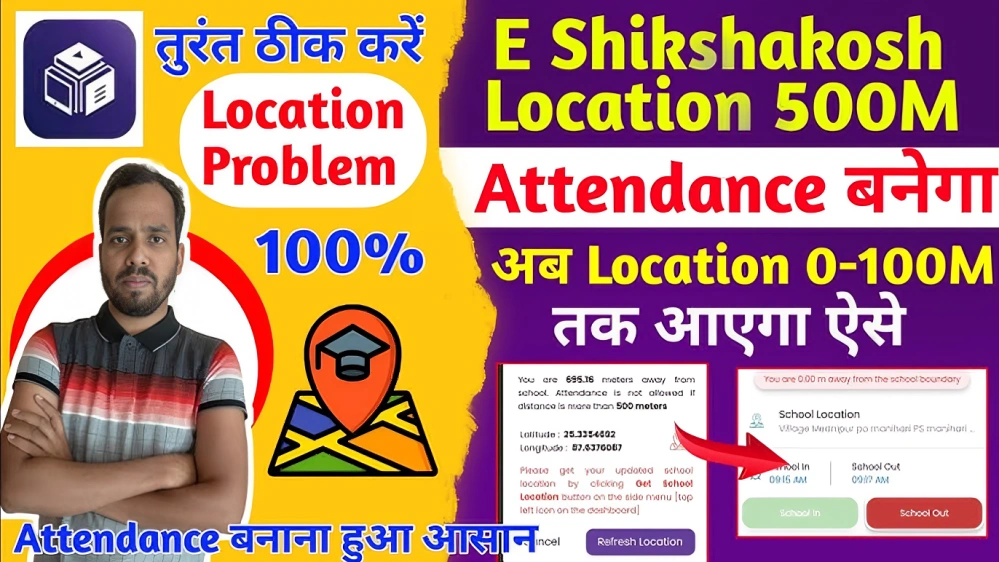
Ensure that your location services are turned on for E-Shikshakosh. If the location is off, the app won’t be able to detect your GPS properly.
For iPhone: Go to Settings > Privacy > Location Services > Turn On
How to enable:
For Android: Go to Settings > Location > Turn On
Make sure that E-Shikshakosh has permission to access your device’s location. Without this, the GPS feature won’t work.
For iPhone: Go to Settings > Privacy > Location Services > E-Shikshakosh > Set it to While Using the App.
How to check:
For Android: Go to Settings > Apps > E-Shikshakosh > Permissions > Ensure Location is enabled.
Sometimes a quick restart can resolve GPS issues. Restart your device to refresh its system and give the app a fresh start.
Make sure that you’re using the latest version of the E-Shikshakosh app. App updates often fix bugs, including GPS errors.
Visit Google Play Store (for Android) or App Store (for iPhone) and check for updates for the E-Shikshakosh app.
How to update:
Ensure that you’re in an area with strong GPS signal, like an open space or near a window. If you’re indoors or in a crowded area, the GPS signal might not be as strong.
If the GPS error still persists, try clearing the app’s cache. This can help resolve any outdated or corrupted data that might be causing the problem.
For iPhone: Uninstall and reinstall the app to clear cache.
How to clear cache:
For Android: Go to Settings > Apps > E-Shikshakosh > Storage > Clear Cache
After resolving the GPS issue, try re-entering the attendance. Make sure that the app correctly registers the GPS data before submitting the attendance.
When to Contact Support
If you’ve tried all these steps and still face GPS issues, it may be time to reach out to E-Shikshakosh support.
FAQs
Final Words
Dealing with GPS errors in E-Shikshakosh can be frustrating, but with these quick and easy steps, you should be able to fix the issue in no time. From enabling location services to checking app permissions, following the guide above will help you resolve the problem and get back to marking attendance without any hassle.
If you need further assistance, don’t hesitate to reach out to E-Shikshakosh support. They’re available to help you get back on track.