Why Transfer Requests Not Showing on E‑Shikshakosh 2025?
Why Transfer Requests Not Showing on E‑Shikshakosh 2025?
If you submitted a transfer request through E‑Shikshakosh and it’s not appearing in your dashboard — don’t worry. You’re not alone, and there are practical steps you can take to sort it out. This guide will walk you through why this could happen, what you can check right now, and how to get it resolved, so your transfer application shows up properly.
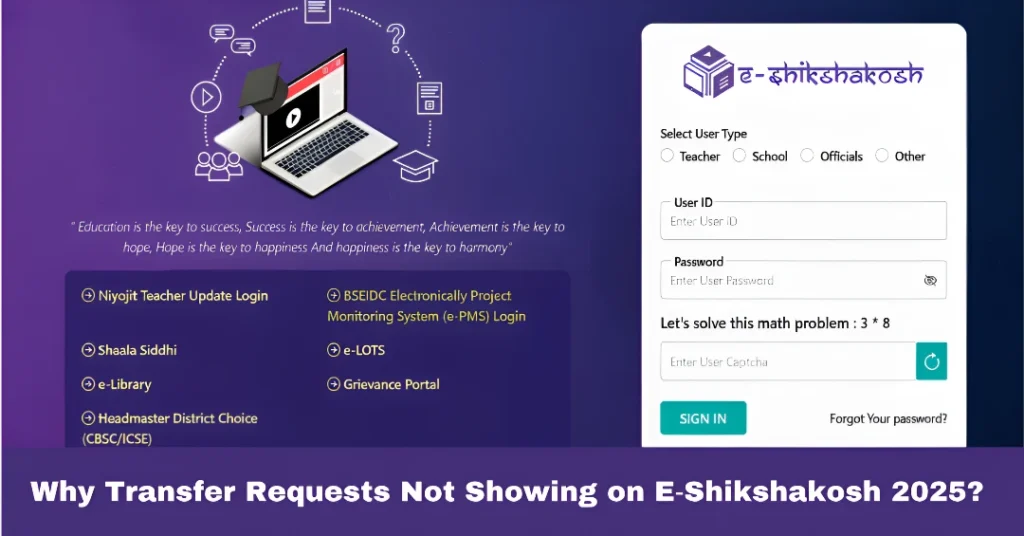
Why the Transfer Request Might Not Be Showing
Here are some common reasons your transfer request may not appear on E‑Shikshakosh:
You can also read:Attendance Not Marking on E‑Shikshakosh App Update 2025
Step‑by‑Step: What You Should Do Now
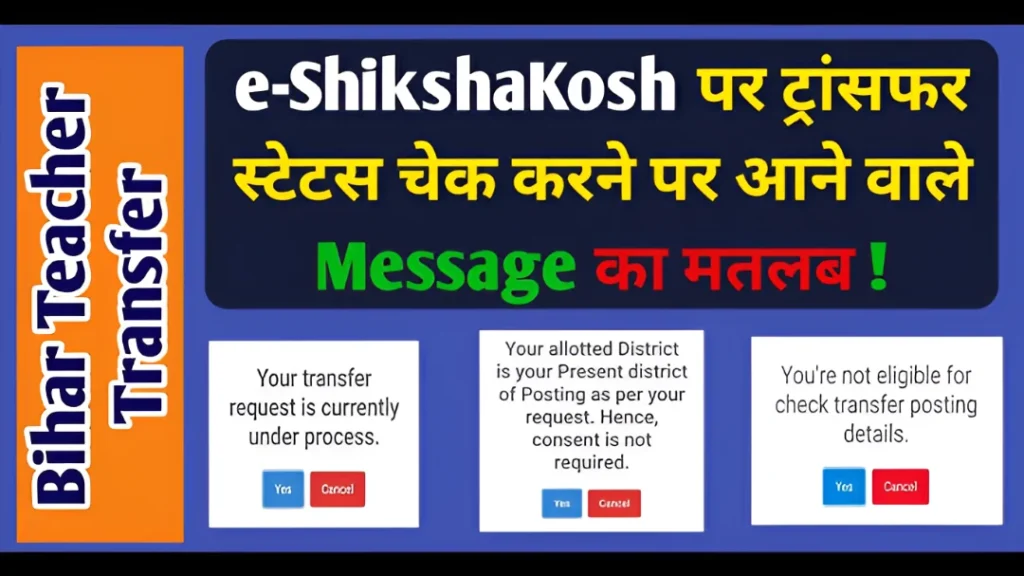
Follow this friendly checklist to try and make your transfer request show up:
Verify that the transfer window is currently open and that you applied within the right timeframe.
Ensure you applied under the correct category (mutual, special grounds, general) and you meet the criteria.
Use your credentials and look under “Transfer Application / Request” section.
If you don’t see it, try “Application History” or “My Requests” tab.
Make sure your subject, school, district, and category details are accurate and updated in your profile.
Check that any required documents (e.g., application form, OTP verification, mutual partner details) were uploaded successfully.
If you submitted recently, give the portal some time. Sometimes updates appear after 1-2 working days due to verification or syncing.
If after 48 hours your request is still missing, take a screenshot of your submitted form, note the submission date/time.
Inform the school Head/Principal and ask them to submit a ticket or grievance through the app/portal.
Use the “Grievance / Support” section in the portal to report “Transfer request not showing”.
Provide your Teacher ID, district, submission date, and screenshot as evidence.
Additional Tips to Ensure Smooth Access to E‑Shikshakosh
Apply as soon as the window opens. Early submission reduces the chance of system delays or backlog.
Keep your profile updated: If you get a school transfer, promotion, or change subject, update your profile before applying for the next transfer.
Check for upload confirmation: After submitting your application, ensure you see a confirmation message or email. If not, re-upload or contact your admin.
Maintain proof of submission: Always save screenshots or print the “application submitted” page — helpful if the entry disappears.
Avoid last‑minute submission: On the last day of the window the portal may be slow or overloaded — apply early to avoid glitches.
FAQs
Final Words
If your transfer request isn’t visible in E‑Shikshakosh, don’t panic. Most of the time it’s either a submission issue, profile detail mismatch, or a short delay. By following the steps above—checking your profile, keeping proof, applying early, and escalating if needed—you’ll much better your chances of getting it properly displayed and processed.